

SkyHub Registration
Before you begin, create a SkyHub account:- Register at https://skyhub.ai/register
- Verify your email address
- Log in to access the SkyHub dashboard
Installation
SSH into your Jetson device and install the SkyCore CLI:- Download the SkyCore package
- Extract it to the current directory
- Install SkyCore to your system by:
- Copying the script to
/usr/local/bin/sc.sh - Creating a symlink at
/usr/local/bin/skycore - Setting proper permissions
- Copying the script to
sc.sh or skycore command.
Drive Flashing
To download and flash a Jetson Orin image to a drive:/dev/sdX is your target drive (e.g., /dev/sda or /dev/nvme0n1).
This command will:
- Download the latest Orin Nano image from our S3 repository
- Flash the image to your target drive
- Create all required partitions with proper filesystem types
Vehicle Registration
Add a new vehicle to SkyHub by visiting: https://skyhub.ai/home?dialog=app-create-drone-dialogDrone Activation
Activate your drone with the following command: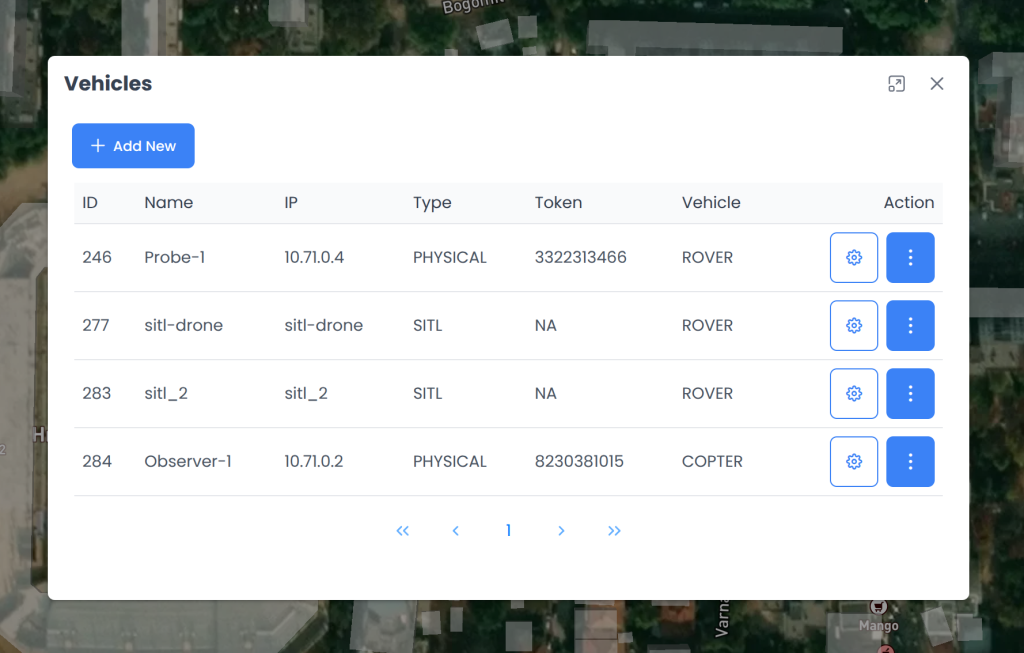
Important Notes
- Ensure you have a stable internet connection before running the commands.
- Run all commands with appropriate privileges (use
sudowhere required).